
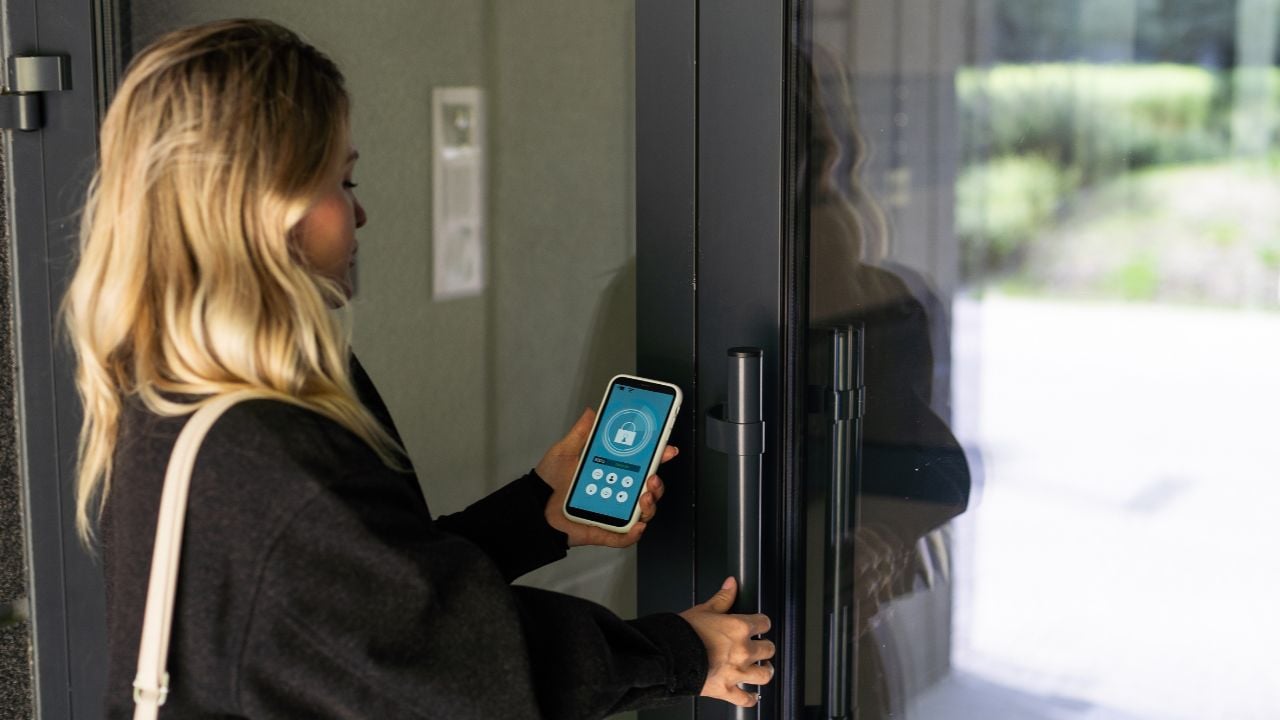
9 Doorbell Camera Settings Arizonans Should Change Today

The doorbell camera bolted to your front door automatically runs on its factory settings unless you change them.
Ring, Google Nest, Wyze, Arlo, and Blink each bury their strongest protections a few menus deep.
These are the doorbell camera settings Arizonans and homeowners everywhere should change today.
1. Nest’s Activity Zones
Google Nest’s doorbell sends a phone buzzing over every passing car, jogger, and swaying branch in the shot unless an owner narrows down what counts.
That narrowing tool is called an Activity Zone.
A homeowner opens the camera’s settings, taps Activity Zones, and draws a custom shape around the porch or the front walk, with room for up to four zones per camera.
Setting up a Nest doorbell through the Google Home app includes this feature automatically, no extra subscription required.
The phone stays quieter.
Nest doorbells can also flag Packages inside a zone’s notification settings, so an alert can say whether it’s a visitor at the door or a delivery on the mat.
The zone changes what triggers a notification, not what the camera records.
2. Ring’s Two-Step Verification
Ring’s doorbell camera adds a second step to every sign-in: A six-digit code is required before the account opens.
Control Center is a setting many owners never open, and it’s where the owner picks that verification method.
An owner can pick a text message, an authenticator app, or WhatsApp instead of leaving the account on Push Notification Approval, the default whenever a phone is already signed in.
It takes one extra tap.
Switching to an authenticator app means a code generated right on the device, one that still works even when the phone loses a signal.
3. Wyze’s Two-Factor Authentication
Wyze’s doorbell camera now turns on two-factor authentication for every account by default, a policy the company didn’t always run.
That protects new accounts automatically.
An older account set up before the switch doesn’t get the upgrade for free, so opening the Wyze app’s account settings confirms whether it’s still active.
Three verification methods sit inside that menu: A text message, an authenticator app, or email.
Pick one, and Wyze only asks for it again at setup or after a full sign-out, not every time the app opens.
4. Ring’s Video Encryption
Every Ring doorbell camera already encrypts its recorded video on Ring’s servers, and a stronger, opt-in lock called Video End-to-End Encryption sits one screen further into Control Center.
Ring now labels this option legacy encryption.
A newer scheme called Throw Away the Key Encryption (TAKE) started rolling out this fall as the default for Ring’s cloud features.
Turning it on means a passphrase-backed key stored only on the owner’s enrolled phone unlocks a clip, not Ring’s servers and not Ring’s staff.
That’s a trade, not a free upgrade.
The owner gives up Event Timelines, Rich Notifications, quick reply buttons, and watching clips through an Echo Show, in exchange for a lock nobody else can pick.
Save that passphrase somewhere safe.
Losing it means losing every encrypted clip for good.
5. Arlo’s Smart Notifications
Arlo’s doorbell camera sorts motion into categories through Smart Notifications, instead of buzzing a phone for every passing car or swaying branch.
That part isn’t free.
Smart Notifications need an active Arlo subscription plan to run.
Inside the app, the profile icon leads to a location, then to Smart Notifications and a chosen camera.
Separate switches there cover People, Vehicles, Animal, and All Other Motion, each one a flip away from switching off.
Turning off All Other Motion alone cuts a lot of the noise.
A camera set to alert only for People or Vehicles skips a notification for the cat crossing the yard or a flag snapping in the wind.
Arlo still records everything the camera sees, alert or not.
6. Blink’s Motion Zones
Blink cameras fire off a clip for anything that crosses the frame, a passing car included.
Motion Zones fix that by graying out the parts of the shot that shouldn’t count, like a sidewalk or a street.
A Sensitivity slider tunes how much movement counts at all.
A Retrigger Time setting, adjustable from 10 to 60 seconds, decides how soon the camera can flag a second clip after the first one ends.
False alarms drop fast.
Whoever checks the feed ends up trusting it more, once the camera’s dialed down to catch only what happens near the door.
Psst! How secure is your doorbell camera setup? Run through this checklist and see where you stand.
7. Nest’s Familiar Face Detection
Google Nest’s Familiar Face Detection teaches a doorbell camera to recognize familiar faces over time, then flags anyone it doesn’t know.
It’s off until a homeowner turns it on for each camera, and it only runs with a Google Home Premium subscription.
Turning it on builds a private face library the homeowner can edit, rename, or erase at any time.
It’s never accidental.
The feature isn’t available on cameras based in Illinois.
Some places also require telling visitors before a camera stores their face, so it’s worth checking local rules before switching this on for a shared porch or a duplex entryway.
8. Wyze’s Sharing Permissions
Wyze lets an account owner share a camera with someone else without handing over the whole account.
That’s the whole point.
A shared user gets live view, playback, and many daily controls, but only the account owner can add another shared user, remove one, or factory-reset the device.
That access doesn’t expire on its own.
Opening the sharing settings shows every person with a standing invitation, including a dog walker or a former tenant nobody remembered to remove.
It takes a few taps, not one, to end that access.
Tapping that person’s name, then the pencil-shaped edit icon, unchecks the shared device, with one more tap on Update to lock it in.
None of it touches the Wi-Fi password or the camera.
9. Ring’s Privacy Zones
Ring cameras can watch straight into a neighbor’s yard, a shared driveway, or the street without anyone asking permission.
Privacy Zones fix that by blacking out a chosen part of the frame, not blurring it, so that corner disappears from every live look and every saved clip.
There’s no blur involved.
Every Ring device gets up to two Privacy Zones, enough to block a neighbor’s window and a stretch of sidewalk at the same time.
What a Ring Camera’s Privacy Zone Misses
Ring’s Privacy Zones block a doorbell camera’s picture only, not the motion sensor behind it.
The camera still detects movement inside a blacked-out area and still saves a recording of it, according to Ring’s support page.
Stopping motion in that same spot takes a separate setting called Motion Zones.
Motion Zones tells the camera to ignore movement in a chosen area, rather than only hiding it from view.
Arizona’s Heat and Battery Shutdowns
Ring doorbell cameras are rated to run between 4 degrees below zero and 122 degrees Fahrenheit, a range Arizona’s summer sun tests every year.
A device left in full sun through a 120-degree stretch can shut down immediately, and even 105-degree heat held for a few days straight can force the same shutdown.
Before that happens, the camera enters what Ring calls Device Cooldown, trimming features and lowering video quality to bring the temperature back down.
A shaded mount helps.
Mounting a doorbell camera under an eave or an awning beats leaving it in direct afternoon sun.
8 WinCo Savings Arizonans Over 60 Keep Missing

Costco charges Arizona members $65 a year just to walk in the door, and Sam’s Club charges $60.
WinCo skips the membership fee, and Arizona shoppers over 60 still miss several of the savings sitting in plain sight.
