
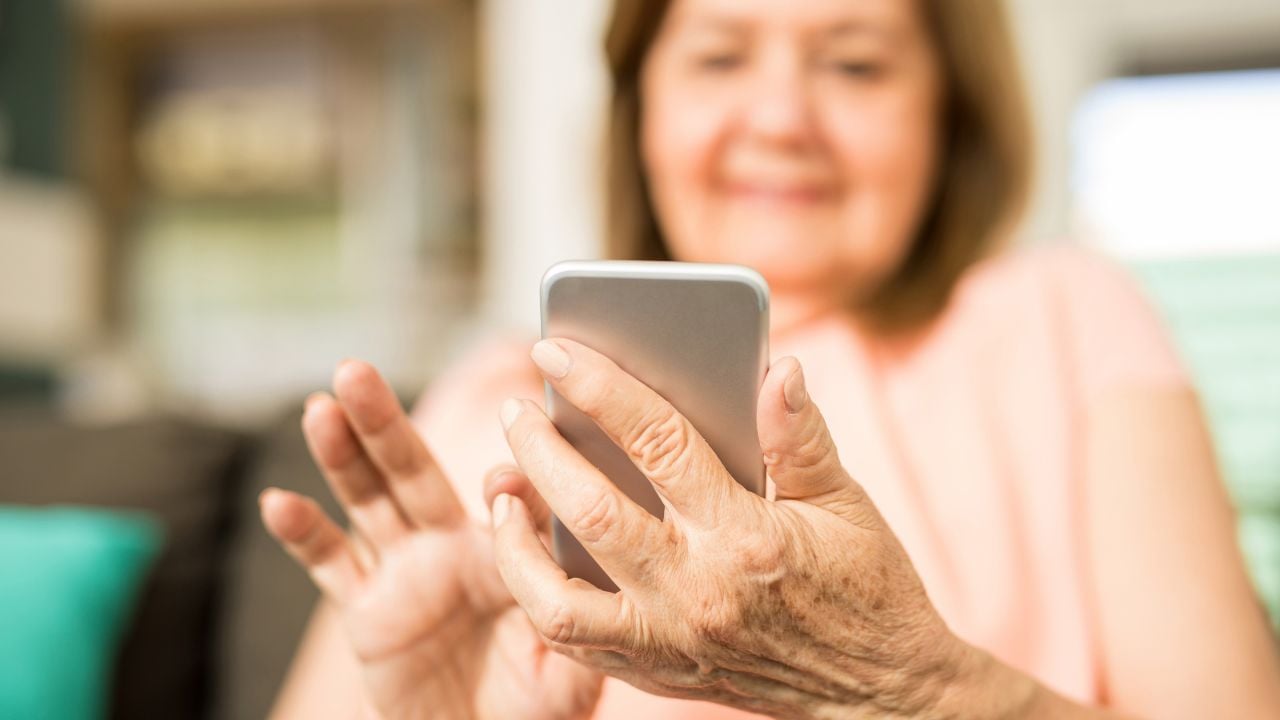
8 Smartphone Settings Older Virginians Should Turn On Before Winter Storm Season

One January snowstorm left nearly 450,000 Virginians without power at its peak, according to the National Weather Service office in Wakefield.
For the people who sat in the dark waiting it out, a phone was the lifeline.
But the settings that make a phone useful in a storm don’t always turn on by default.
These are the smartphone settings older Virginians and Americans everywhere should turn on before winter storm season.
1. Wireless Emergency Alerts
Wireless Emergency Alerts are the loud, buzzing warnings your smartphone pushes through even when it’s on silent.
The switch for them is easy to flip off by accident and never flip back.
Check it now.
On an iPhone, Apple’s instructions are to open Settings, tap Notifications, and scroll to the bottom, where the Government Alerts switches sit.
On a Pixel, the path is Settings, then Notifications, then Wireless Emergency Alerts, with separate toggles for extreme threats, severe threats, AMBER Alerts, and public safety messages.
On Samsung phones, the path is Settings, then Safety and emergency, then Wireless emergency alerts, where an Allow alerts switch turns the whole set on.
Samsung phones also offer a Speak alert message option under Alert preferences in that same menu.
Turning it on makes the phone read the warning aloud instead of leaving you to squint at it.
If your eyes or hearing aren’t what they were, that spoken alert is the difference between knowing and guessing.
What a Wireless Emergency Alert Covers in Winter
A Wireless Emergency Alert from the National Weather Service only goes out for a short list of warnings.
That list includes tsunami, tornado, hurricane, typhoon, storm surge, extreme wind, dust storm, and snow squall warnings.
It also includes severe thunderstorm warnings for the most destructive storms, and flash flood warnings only when forecasters call them catastrophic.
Winter storm warnings, blizzard warnings, and ice storm warnings aren’t on it.
So a phone with every alert switch turned on can still sit silent while a foot of snow moves in.
Those warnings reach you through a weather app’s notifications, a NOAA Weather Radio, or the free alert system your city or county runs.
2. Your Medical ID
Medical ID is the card a paramedic reads on your smartphone when you can’t talk.
On an iPhone, that card lives in the Health app instead of in Settings.
Apple’s steps are to open Health, tap the Summary tab, tap your profile picture, then tap Medical ID and fill in your medications, allergies, and conditions.
Two switches on that screen matter more than the rest.
Show When Locked lets a responder open the card from the lock screen without your passcode.
Share During Emergency Call sends the same information along when you call or text 911.
Turn on both.
On Samsung phones, the path is Settings, then Safety and emergency, then Medical info, where you enter blood type, allergies, and medications.
Pixel and other stock Android phones keep it in the Safety app instead: Open Your info, tap Medical information, and fill in the same details.
Turning on Emergency info access, then Show when locked, puts that card on your lock screen.
A fall on an icy front step is exactly when nobody can recite their blood thinner’s name.
3. Emergency SOS by Button
Emergency SOS turns the buttons on the side of your phone into a 911 call you can place without unlocking anything or finding the keypad in the dark.
On an iPhone, Apple’s path is Settings, then Emergency SOS, where you can turn on Call with Hold and Release or Call with 5 presses, or both.
Hold the side button and a volume button until a countdown ends, then let go, and the call goes out.
Pressing the side button five times fast starts that same countdown.
Android phones put it under Settings, then Safety and emergency, then Emergency SOS, and Google says it triggers when you press the power button five times or more.
Samsung’s version, in the same Safety and emergency menu, uses five presses of the side button.
Gloves make screens hard to use.
Buttons still work through them, which is the whole point of setting this up before the sidewalk ices over.
4. Location Sharing With Family
For the location sharing setting, Apple’s path on an iPhone is Find My, then the Me tab, then Share My Location.
Then tap the People tab, tap the Add button, tap Share My Location, and pick the person.
That’s what lets a daughter in Richmond or a son in Roanoke see where you are without having to call every hour to check.
You can share for an hour, until the end of the day, or indefinitely, and indefinitely is the setting that survives a three-day outage.
Android uses Google Maps for the same job: Tap your profile picture, tap Location sharing, tap New share, choose how long, pick the person, and tap Share.
Google’s help page notes the person you share with sees your battery status along with your location.
That’s the useful part.
A phone stuck at the house with 9% left shows your family more than a dropped call does.
5. Low Power Mode
Drivers sat on I-95 near Fredericksburg for over 24 hours when the January 3, 2022, storm knocked out power to nearly 450,000 Virginians, by the Wakefield weather office’s account.
That’s a long time unplugged.
Low Power Mode stretches whatever charge is left in a phone.
Turn it on the minute the lights go out.
That matters even more for anyone leaning on a medical-alert companion app, or for a household with no landline, where the cellphone is the only line to family and help.
On an iPhone, Apple’s path is Settings, then Battery.
On an iPhone 15 or later, tap Power Mode first.
On earlier iPhones, the toggle sits directly on the Battery screen.
Once Low Power Mode is on, the battery icon turns yellow and the phone stops background app refresh and automatic downloads.
On a Pixel, Google’s path is Settings, then Battery, then Battery Saver, where Schedule and reminders lets the phone turn it on by itself at a battery level you pick.
Pixels also carry an Extreme Battery Saver that pauses many apps and keeps Phone, Messages, Clock, and Settings running.
Paused apps stop sending notifications, so pick your weather app as an essential app before you need it.
6. Larger Text
Larger text sounds like a comfort setting until a 360-character emergency alert arrives at 2 a.m. and your glasses are in the other room.
You read bigger letters faster.
On an iPhone, Apple’s instructions are Settings, then Accessibility, then Display & Text Size.
Larger Text opens a slider there, and a Larger Accessibility Sizes switch unlocks the biggest options.
Bold Text and Increase Contrast sit on the same screen, and both help when a dim screen is the only light in the room.
Android keeps it under Settings, then Accessibility, then Display size and text, with a Font size slider, a Display size slider, and a Bold text switch.
A utility’s restoration estimate is a number you want to read on the first try.
7. Do-Not-Disturb Exceptions
The Do-Not-Disturb setting is a fine way to sleep through spam calls.
It’s a terrible way to sleep through a daughter calling at 3 a.m. because the power went out on your street.
The exception list fixes that.
On an iPhone, Apple’s path is Settings, then Focus, then the Do-Not-Disturb entry.
Allow Notifications, on that screen, lets you add the people whose calls and messages come through anyway.
Set a Schedule sits in the same menu.
It’s worth a look, since an old schedule you set up years ago could still be silencing your phone every night.
Android puts it under Settings, then Modes, then the Do-Not-Disturb entry, with a People section that decides whose calls and messages get through.
Google’s page also describes an Allow repeat callers switch, which lets a call ring through if the same person calls twice within 15 minutes.
Turn that switch on.
8. Emergency Contacts
Emergency contacts are the people your smartphone texts on your behalf after an SOS call.
That field sits empty if you haven’t set it up yet.
On an iPhone, emergency contacts come from the same Medical ID screen in the Health app.
Apple’s Emergency SOS guide explains what happens next: Once the call ends, the phone texts those contacts your location and keeps sharing updates for a while as it changes.
That’s unless you cancel it, or unless your location isn’t available.
Samsung’s path is Settings, then Safety and emergency, then Emergency contacts, then Add emergency contact.
Samsung’s Emergency SOS screen carries a separate Send SOS to emergency contacts switch.
The company says the first message includes your location, a photo, and a voice recording, with location updates every 15 minutes for 24 hours.
On a Pixel, open the Safety app, tap Your info, tap Emergency contacts, then Add contact.
Pick two.
When Gov. Abigail Spanberger declared a state of emergency ahead of a January 2026 storm, the release asked Virginians to plan on checking older or disabled neighbors and relatives.
Psst! How storm-ready is your house? Run through this checklist and see where you stand.
Dominion’s Medical Priority List
Your smartphone can also receive power company alerts.
For many people, that means Dominion Energy or Appalachian Power.
Dominion offers text and email alerts for storm safety and outage information through a customer’s online account.
One program matters more for anyone on oxygen or a powered medical device.
Dominion keeps a list of customers who file a medical conditions form, signed by a physician and renewed every year.
The company says it notifies those customers ahead of time when it expects wide-scale outages.
Being on that list means hearing about trouble before the lights go out, not after.
Appalachian Power, which serves southwest Virginia along with West Virginia and Tennessee, runs its outage alerts through the online account too.
Its terms note that short outages normally won’t trigger an alert at all, so a flicker won’t wake you, but a line down on your road will.
Why Cold Drains Your Battery
Winter cold is hard on a phone’s battery.
Apple puts a number on it.
Apple designs the iPhone for air temperatures between 32 and 95 degrees Fahrenheit.
Below that range, the company says battery life may temporarily shorten and the phone may shut itself down.
Apple says battery life returns to normal once the phone warms back up.
That’s why a phone that died on the porch often turns back on once it’s inside on the kitchen counter.
During an outage, keep the phone in an inside pocket instead of on a windowsill or in a cold car, and charge from the power bank there.
A phone at 40% in a warm pocket will outlast a phone at 70% sitting on a frozen dashboard.
8 Things a Closed Waffle House Means for Virginians Before a Storm
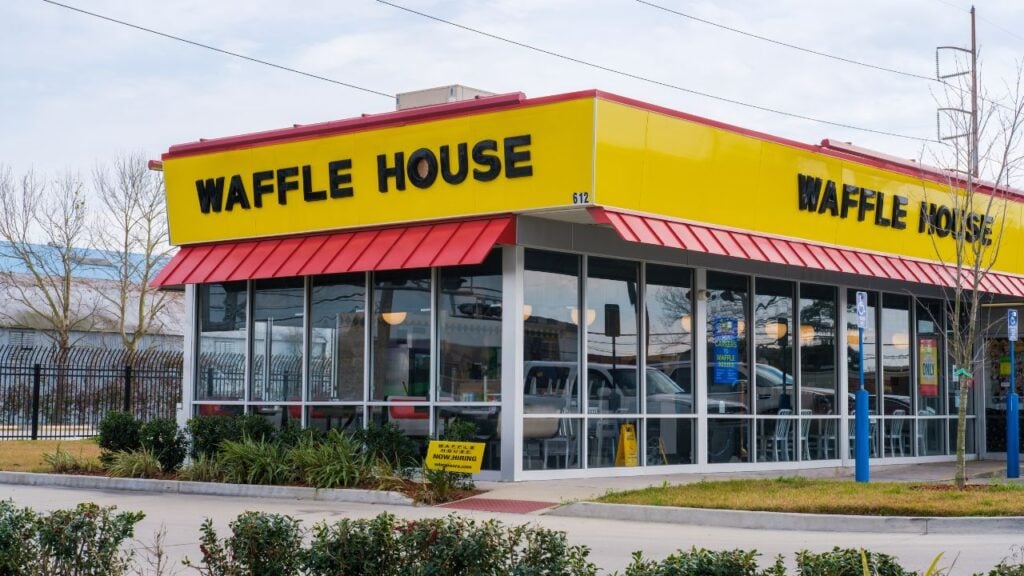
A rumor spread on a Charlottesville subreddit last January that the local Waffle House was closing ahead of a winter storm.
Waffle House stays open through storms across Virginia right up until the moment it can’t, and a dark Waffle House says something about what’s coming.
8 Things a Closed Waffle House Means for Virginians Before a Storm
7 Home Features That Become Unexpectedly Frustrating as Virginians Get Older
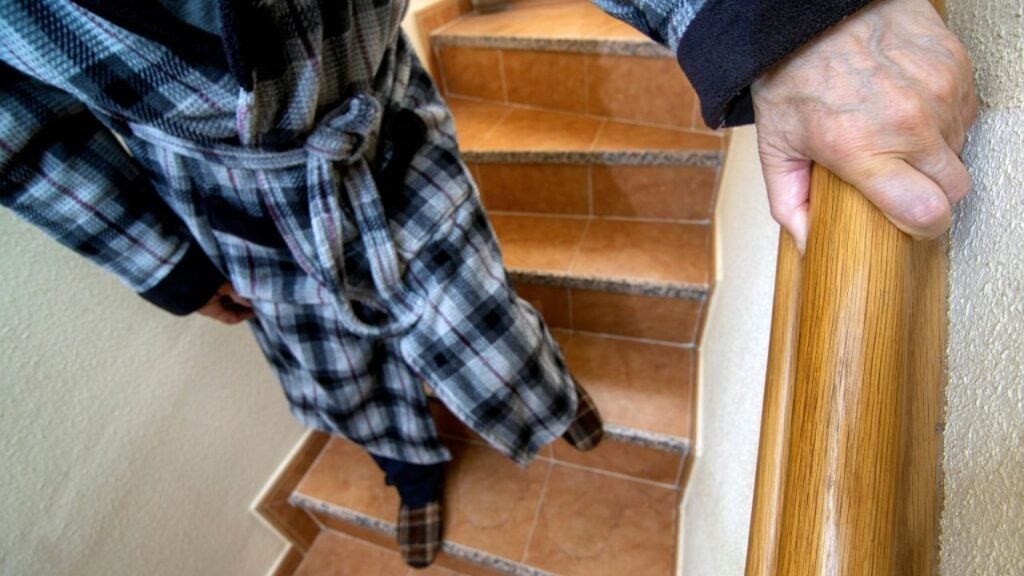
A grandfather in Lynchburg braces both hands on the sink before he stands up off the toilet, a small move he never used to think twice about.
Nothing in his house changed, and the Census Bureau says nearly a fifth of Virginia is now 65 or older.
7 Home Features That Become Unexpectedly Frustrating as Virginians Get Older
